
How to Migrate from WordPress to Webflow Without Losing Your SEO Rankings

.svg)
The thing that scares people most about moving to Webflow isn't the build. It's the rankings.
You've spent years getting your blog posts to page one. Your domain has authority. Specific URLs are ranking for specific queries and bringing in leads every month. The idea of rebuilding the site and watching those rankings drop is legitimately terrifying — and it's the reason a lot of companies stay on WordPress long after they've outgrown it.
We migrated ISDM from their old CMS to Webflow: 22 pages, thousands of articles, years of accumulated SEO equity. Zero ranking loss. Sixty days. Here's the process we followed, and what tends to go wrong when people skip steps.
Why WordPress-to-Webflow migrations go wrong
The most common reason migrations cause ranking drops isn't the platform switch itself — Google doesn't care whether you're on WordPress or Webflow. The problem is broken URL structures. If your WordPress post lived at /blog/how-to-manage-remote-teams and your Webflow site puts it at /resources/how-to-manage-remote-teams with no redirect, Google loses the connection between your old URL (with its backlinks and ranking history) and the new one. That's when rankings drop.
The second most common issue is missing metadata. WordPress stores title tags and meta descriptions in a database. Webflow stores them in page settings. The content migrates fine — the invisible SEO layer doesn't migrate automatically. If nobody manually moves over every page's title tag, meta description, canonical URL, and OG tags, the new site launches with all of that blank.
Third: duplicate content from staging. If your Webflow staging environment gets indexed before launch, Google may see the new site as duplicate content against your existing live site. This is fixable but annoying to clean up after the fact.
Pre-migration: what to do before you build anything
Start with a full crawl of your existing WordPress site using Screaming Frog (or any crawler). Export every URL, title tag, meta description, H1, and canonical. This becomes your migration checklist — every item needs to be accounted for on the Webflow side before launch.
While you're at it, export your top pages from Google Search Console sorted by impressions. These are the pages you cannot afford to lose. Pay extra attention to them throughout the migration.
If you use Ahrefs or SEMrush, export your backlink profile too. The pages with the most inbound links are the ones where a broken redirect will cost you most.
Building the 301 redirect map
This is the step most people underestimate. The redirect map is a spreadsheet with two columns: old URL and new URL, one row per page. Every URL on the old site needs to go somewhere on the new one.
If you're keeping the same URL structure (which we recommend whenever possible), most of these are identical. The work is in the exceptions — pages that are being consolidated, renamed, removed, or restructured. For a site with fifty pages and a blog with two hundred posts, the redirect map is a few hours of work. For ISDM with thousands of articles, it took several days of careful mapping before we touched the build.
In Webflow, 301 redirects live in Site Settings → SEO → 301 Redirects. You can paste them in bulk. Test every redirect on staging before launch — paste the old URL into a browser and confirm it lands on the new page with a 301 status code, not a 302 or a 404.
Migrating blog content to Webflow CMS
Webflow's CMS doesn't have a direct WordPress import. You have a few options: manual migration (viable for under fifty posts), a tool like CMS Import or Whalesync (works reasonably well for clean WordPress setups), or a custom script if your content has a complex structure.
Whatever method you use, verify these for every migrated post: the slug matches the original (or is captured in the redirect map), the publish date is preserved (Webflow has a date field for this — use it), the featured image has alt text, and the body content rendered correctly in Webflow's rich text editor.
Don't just dump content into Webflow and assume it looks right. Spot-check twenty posts across different categories. We've seen migrations where a formatting character in the WordPress export broke entire paragraphs in Webflow's rich text renderer — the kind of thing you only catch by actually reading the pages.
Moving over the SEO layer
For each page in Webflow: open the page settings, paste in the title tag, meta description, and OG image from your crawl export. Set the canonical URL to the final live URL (not the staging URL). Add schema markup where applicable — Article schema for blog posts, ProfessionalService or Service schema for service pages.
For CMS collection pages (blog posts, case studies), Webflow lets you use dynamic fields in the meta tags. Set the Title field to pull from the CMS "Meta Title" field, and the Description from "Meta Description." This means you can set these once in the template and populate them per post from the CMS — which is the right way to do it.
One thing Webflow doesn't handle natively: redirecting old pagination URLs (/page/2, /page/3) if your WordPress blog used them. Add those to your redirect map too.
Staging and pre-launch QA
Keep the Webflow staging subdomain blocked from indexing until launch (this is on by default in Webflow — just don't turn it off). The staging site should have noindex set across all pages.
Run through this before you touch DNS:
All 301 redirects tested and returning correct status codes. All page title tags and meta descriptions populated. No empty canonical URLs. Sitemap generates correctly (check /sitemap.xml). robots.txt allows Googlebot. GA4 tag fires on page load. All forms submit and route to the correct CRM. No broken images. Site loads under three seconds on mobile (check PageSpeed Insights).
This list sounds obvious. We still catch something on it on every migration.
The DNS cutover
Do the DNS cutover during a low-traffic period — late evening or early morning for your primary audience's timezone. The actual switch is fast, but DNS propagation takes anywhere from a few minutes to 24 hours depending on the TTL settings. Lower your old DNS TTL to 300 seconds a few days before the cutover to speed up propagation.
After launch: verify the live site immediately. Check that HTTPS is working, the homepage loads, a handful of blog posts load correctly, all redirects still work on the live domain (not just staging), and GA4 is receiving data.
Post-launch monitoring
Submit your new sitemap to Google Search Console immediately after launch. Watch the Coverage report over the following days — you're looking for 404 errors (missed redirects) and crawl anomalies. Any 404s that appear need to be traced back to a URL that needs a redirect.
Check your top twenty pages by impressions weekly for the first month. Some short-term fluctuation is normal during any migration as Google re-crawls and re-evaluates the new site. Sustained drops on specific pages usually indicate a broken redirect or missing metadata on that URL.
We run 30-day post-launch monitoring on every migration we do. In the ISDM project, we caught two edge cases during that window — both fixed within 48 hours. Nothing reached zero impressions. That's the target.
If you're planning a migration
The audit call is free. We'll look at your current site, estimate the migration complexity, and tell you what the risk profile looks like for your specific setup — how many redirects you'll need, where the content migration gets complicated, and roughly what it costs. Whether you do it with us or not, you'll have a clearer picture of what you're actually taking on.
Related Posts
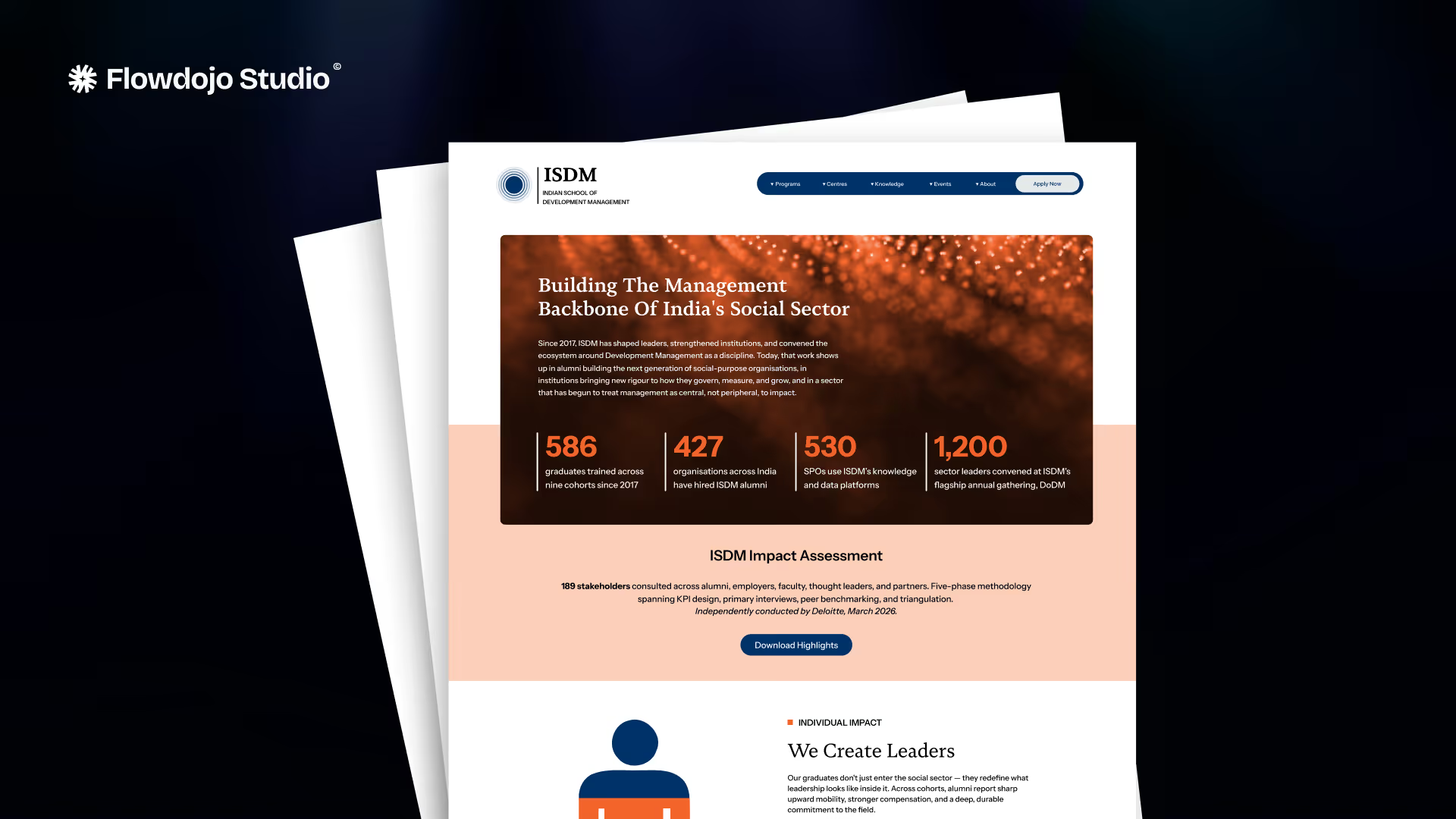
How Flowdojo migrated ISDM's 22-page education site to Webflow with thousands of articles and zero search ranking loss in 60 days. Full migration case study.
Webflow vs WordPress for B2B: performance, SEO, content management, dev dependency, pricing. From a team that's built 135+ Webflow sites for B2B companies.
