
Webflow CMS Architecture for B2B Sites — How We Structure It
.svg)
The CMS architecture decision happens before design. If you design first and architect the CMS to fit the design, you end up with a structure that looks right but breaks the moment your team tries to manage content six months after launch. Getting this order right has saved a lot of our clients from expensive restructuring.
Why architecture matters before design
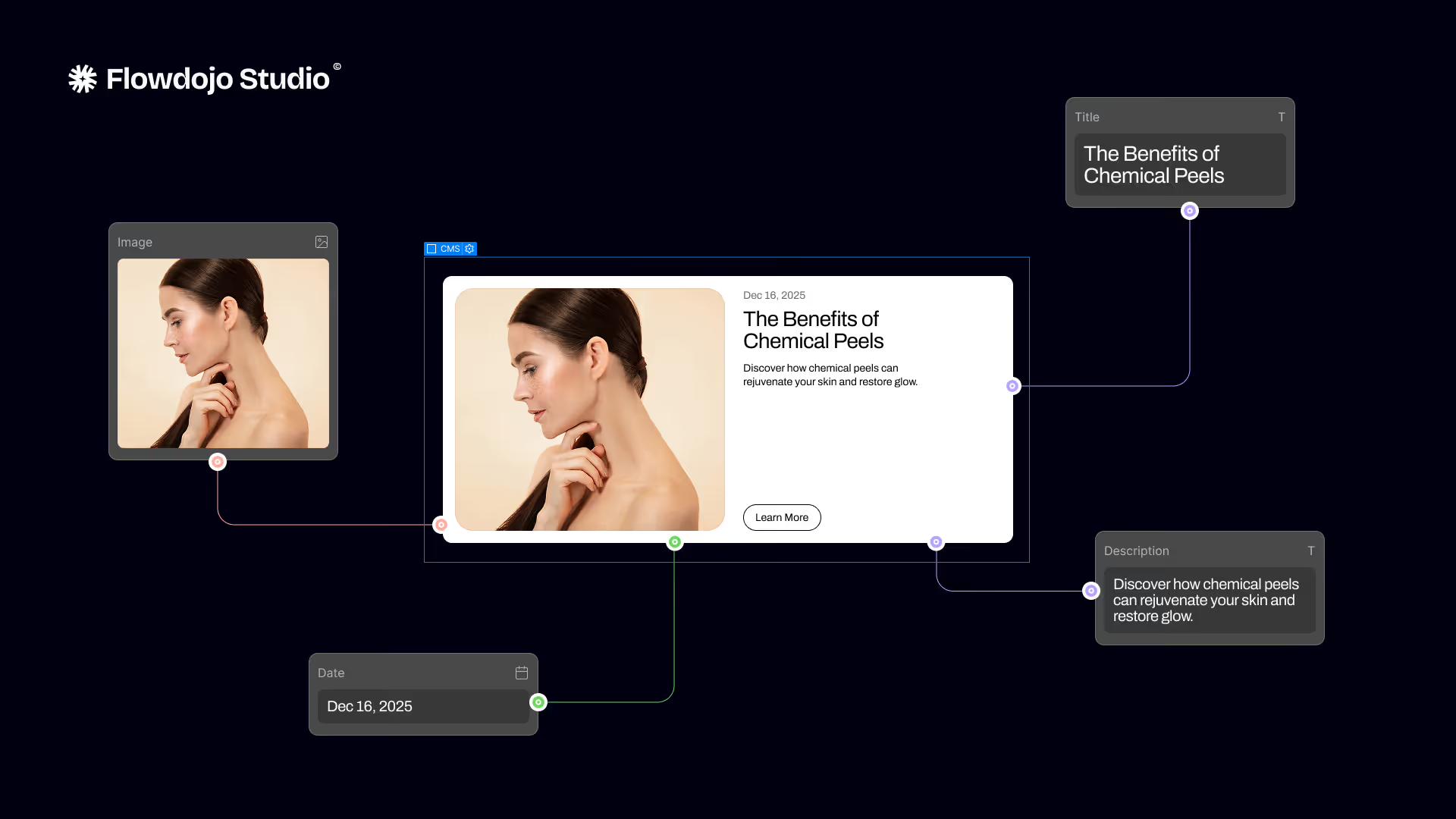
Webflow CMS collections are relational. Blog posts reference authors. Case studies reference industries and services. Team members reference departments. The relationships you build between collections determine what's possible in the design — which means if you haven't thought through the content model before the designer opens Figma, you're building on assumptions that may not hold.
We've inherited sites that had "Blog Posts" and "Articles" as separate collections because someone added content types without thinking about the overlap. Merging them after the site is live, with content in both, is a painful afternoon. Doing it right in week one takes twenty minutes.
The standard B2B CMS structure
Here's what we build for most B2B clients:
Blog Posts — Title, Slug, Meta Title (separate from title), Meta Description, Author (reference to Authors collection), Published Date, Category (multi-reference to Categories collection), Featured Image with alt text field, Body (rich text), Summary (plain text, 150 chars, used in listing cards).
Case Studies — Client Name, Slug, Meta Title, Meta Description, Industry (reference), Services Delivered (multi-reference), Project Timeline, Team Size, Outcome (plain text, the key result in one sentence), Body (rich text), Featured Image, Client Quote, Client Name and Title.
Authors — Name, Slug, Role, Bio, Photo, LinkedIn URL. Referenced by Blog Posts. You need this collection before you publish any posts if you want Article schema to work correctly.
Team — Name, Role, Department (reference), Photo, Bio, LinkedIn. Used on the about page and optionally on service or industry pages.
Integrations (if you have an integrations page) — Name, Logo, Category, Short Description, URL. Simple collection, but worth building into CMS rather than hard-coding so marketing can add integrations without a developer.
Categories — Name, Slug, Description. Referenced by Blog Posts and Case Studies. Keeps taxonomy consistent across content types.
Reference fields vs multi-reference
Reference = one-to-one. A blog post has one author. Use reference.
Multi-reference = one-to-many. A case study might belong to multiple industries (FinTech and AI) or multiple service categories (Webflow Development and Brand Identity). Use multi-reference for these.
The practical limitation in Webflow: you can only filter CMS lists by one reference field at a time in native Webflow. If you need complex filtering — "show all case studies in FinTech that also involved migration" — you'll need Finsweet's CMS Filter attributes or a custom solution. Worth knowing before you promise that feature to a client.
Case study architecture for SEO
This is where we see the biggest mistakes. Case studies are usually built as portfolio items — beautiful project pages optimised for aesthetics. But they're also the most valuable SEO content a B2B company has, because they naturally contain the client's company name, the industry, the problem, and the outcome — exactly what people search for when researching vendors.
Every case study needs: a meta title that includes the client name and what was delivered (not just the client name), a meta description with the key outcome, an H1 that matches the meta title closely, and body content that describes the problem, the approach, and the result in enough detail that a reader who never books a call still comes away understanding what working with you looks like.
The CMS fields for this: we add a "Meta Title Override" field so the SEO title can be different from the client name field that appears in the design. We add a "One-Line Outcome" plain text field that feeds both the meta description and the listing card preview. And we add a "Publish Date" that gets used in the Article schema — yes, case studies should have Article schema with a publish date, because it signals freshness to Google.
Blog CMS: the fields people forget
The Summary field. This is a plain-text field, 150 characters max, that feeds listing pages and OG meta descriptions. If you don't have it, you either pull from the rich text body (which cuts off awkwardly) or you write meta descriptions manually for every post. Neither is good.
The Estimated Reading Time field. Optional, but readers use it. You can calculate this from the body field with a custom embed, or just maintain it manually in the CMS.
The Canonical URL field. Needed if you cross-post content or have duplicate URL edge cases. Set it as a text field and use it to override the default canonical in the page template.
Template pages vs static pages
Use CMS collection pages (templates) for anything you'll have more than one of: blog posts, case studies, team members, integrations. Use static pages for everything else: homepage, about, services, contact.
The temptation is to make everything a template because "it'll scale." Don't. Static pages are easier to design uniquely, easier to optimise for SEO, and easier for clients to understand. Reserve templates for genuine content that repeats at scale.
The most common CMS mistake we fix
No "Draft" workflow. Webflow CMS items are either published or they're not. There's no native "scheduled" or "review" state in standard Webflow CMS. Teams that aren't aware of this either publish prematurely or keep content out of the CMS entirely until it's ready. The fix: either use Webflow's Staging environment for draft management, or establish a clear discipline around CMS item status. We brief every client on this during handoff.
If you're planning a Webflow build or rebuild and want to talk through your content architecture before design starts, the audit call covers this. It's free and 30 minutes.
Related Posts

What conversion rate should a B2B website hit? Industry benchmarks, what a good demo request rate looks like, and what to fix if your site is underperforming.
How Long Does a B2B Website Rebuild Actually Take?
Every agency tells you "six to eight weeks." Then it's fourteen weeks and everyone's frustrated. Here's why that happens and what an honest timeline actually looks like.